Every session has a Terminal tab in the tool panel: an interactive shell on the same computer the session runs on. In the desktop app in Local mode that’s your own machine. In a cloud session it’s the sandbox. The tab is in the web app too, so a terminal is one click away wherever the session is open.
Open a terminal
Select Terminal in the tool panel toolbar at the top of the session. Opening the tab starts a shell if none is running, and the Shell chip in the transcript opens the same panel.
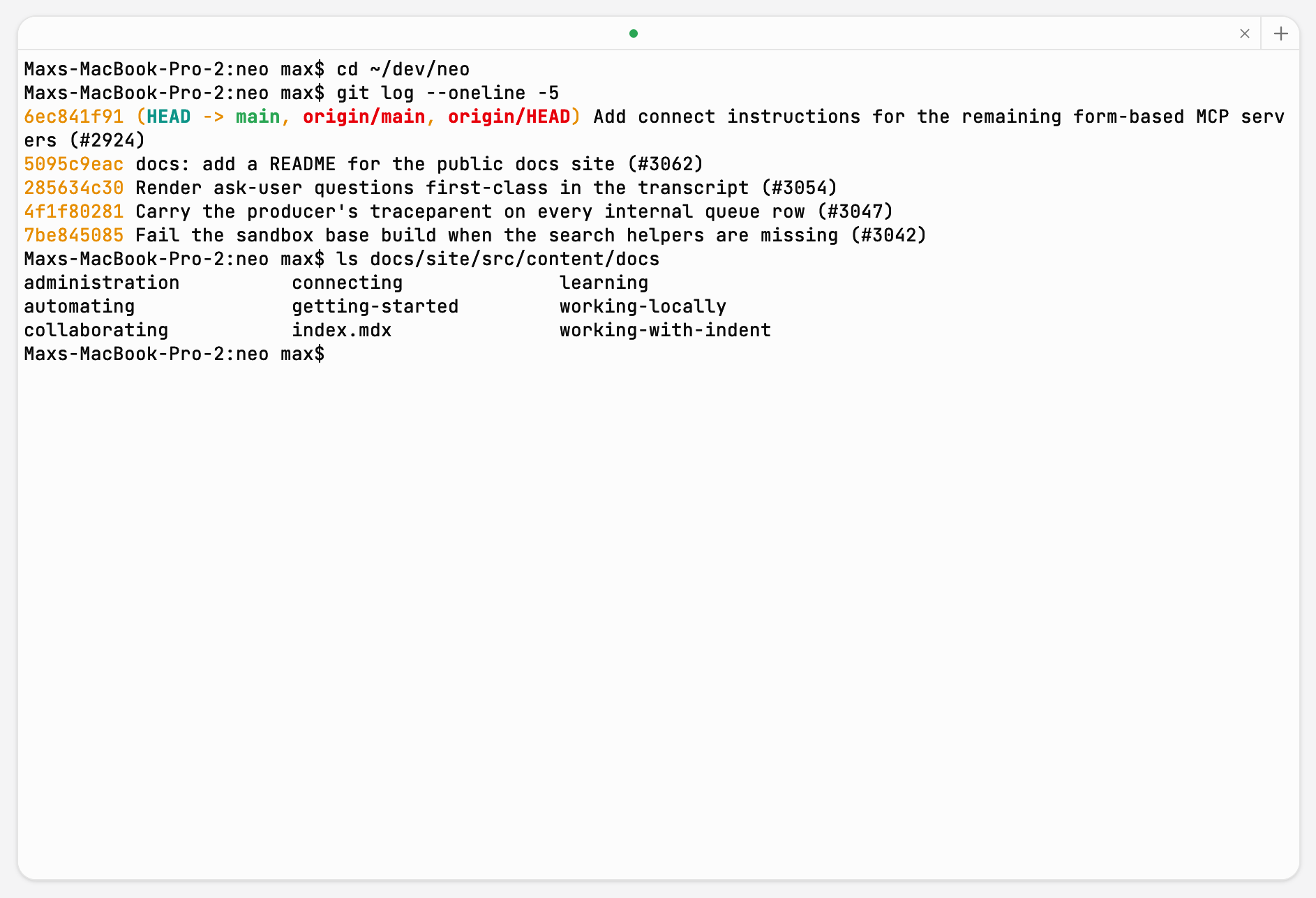
- New terminal adds another shell. Tabs reorder by dragging, and each tab shows its exit status once its shell ends.
- Closing the last tab closes the panel.
- The shell runs on the computer, not in the window. Reload the app or lose the connection and the terminal reattaches with its scrollback intact.
What you’re connected to
The terminal and Indent share the computer, not the shell. You see the same files, services, and ports, but each has its own shell process, so history, shell variables, and the current directory are separate.
- Local session — your own machine, running your login shell with your environment. Commands run
with your account’s access, so treat the terminal the way you’d treat any shell on your machine.
It opens in the app’s working directory rather than the folder the session uses, so
cdthere first. - Cloud session — the sandbox, starting in
/workspace, with the environment variables the session was configured with already set. Opening the tab wakes a sandbox that has gone to sleep.
It’s a real terminal
The panel is a full terminal emulator, not a command box: colors, mouse reporting, and full-screen
programs such as vim and htop all work. It resizes with the panel, and scrollback is there
through the scrollbar or Shift+Page Up and Shift+Page Down.
Selecting text copies it. Paste with Cmd+V on macOS, or Ctrl+Shift+V elsewhere; plain Ctrl+V passes through to the program you’re running.