The Processes tab shows the long-running services configured by a cloud session’s environment. Use it to watch a development server, database, worker, or other service while you work.
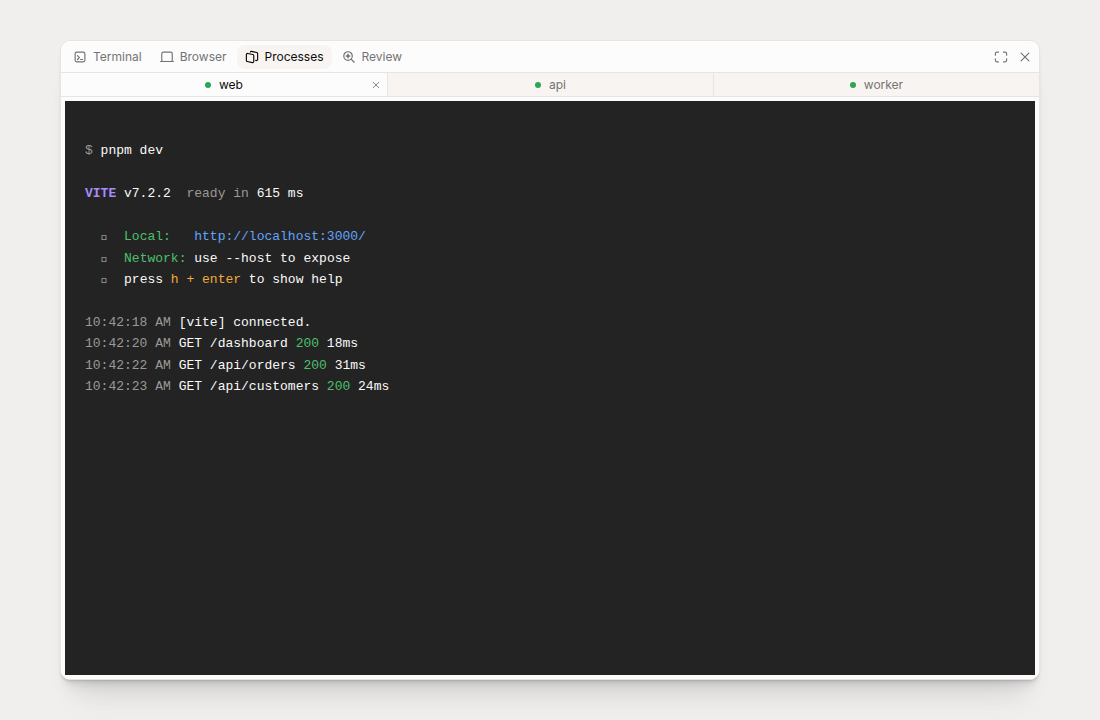
Watch process output
Select Processes in the tool panel toolbar at the top of the session. Each configured process has its own tab with live output and scrollback. Select a tab to switch services, or drag tabs to reorder them.
A green dot means a process is active. Configured commands are supervised. If a command exits or crashes on its own, Indent restarts it one second later.
Close a process tab to intentionally stop that process. An intentional stop suppresses its restart for the current session. The process stays in the environment configuration and starts again in future sessions.
Configure processes
Open Settings → Environments, select an environment, and open Configure. Under Processes, add a unique name and the command to run. For example:
| Name | Command |
|---|---|
web |
cd /workspace/acme/app && pnpm dev |
api |
cd /workspace/acme/app && pnpm dev:api |
db |
cd /workspace/acme/app && docker compose up |
Processes start in /workspace when a session begins. Include cd /workspace/<owner>/<repository>
in commands that run inside a repository. Publish the pending environment revision after editing.
The changes apply to new sandboxes launched from that revision and do not require an image rebuild.
If no services are configured, the tab shows No processes running.