Archiving takes a session out of your session list. The history stays, and you can bring the session back at any time.
Archive a session
Every session list has an Archive action:
-
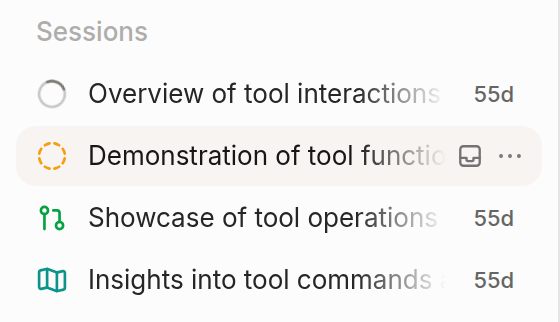
Sidebar — hover a session row and click the archive icon, or right-click the row and choose Archive.
-
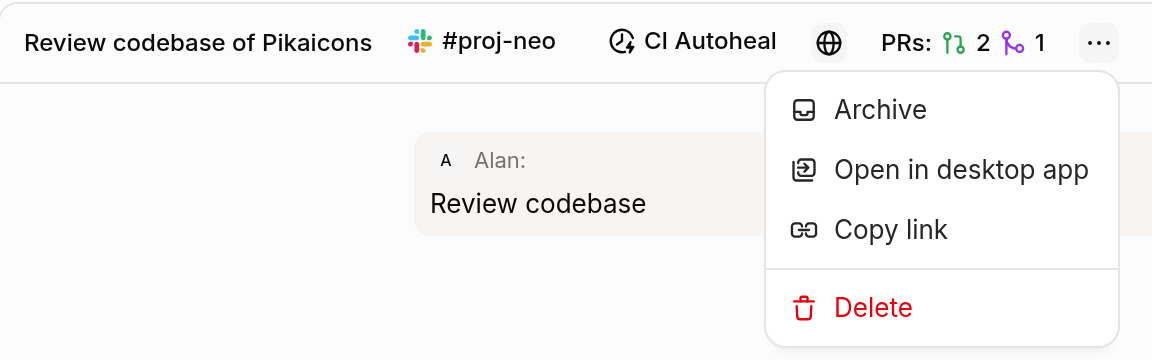
Session header — open the ⋯ menu in the header of an open session and choose Archive.
-
Home page — hover a row and click the archive icon, or right-click the row and choose Archive.

Archiving takes effect immediately. Delete, in the same menus, is irreversible.
Archiving a session that Indent is still working on stops the work, the same way interrupting it does: tool calls in flight are cancelled, the partial reply stays in the history, and the session ends up halted. Anything that arrives afterward is queued, so activity on a pull request the session is subscribed to is processed once the session comes back. Archiving applies to the session, so it also leaves your teammates’ lists, and anyone who can see a session can archive or unarchive it.
Find an archived session
Go to the home page and open the Archive tab, next to Sessions. It lists the archived sessions you started or took part in. The tab is part of the URL, so the view is shareable.
That tab is the only list an archived session appears in. A teammate who never took part in one can’t find it once it’s archived, though a direct link to a session keeps working.
Bring a session back
Two ways:
- Unarchive it. On the home page’s Archive tab, right-click a row and choose Unarchive. The session returns to your sidebar and lists.
- Send it a message. A new message from a person unarchives the session automatically, from any surface: the composer in the web app, a mention in the Slack thread the session belongs to, or a comment on the Linear issue it was started from. Indent picks the work up with the full history.
Opening an archived session leaves it archived. Only a new message brings it back.