Reports are durable, versioned documents for investigations, audits, analyses, and other work people need to revisit. Ask Indent to publish a report when a result needs a home beyond the session. Indent returns a link when the report is published, and the report remains available after the session’s computer is gone.
Find and read reports
Select Reports in the app sidebar to browse reports available to you. Search matches report titles. Use Mine, Teammates, Bots, and All to filter by creator. Private reports have a lock icon. Reports are ordered by their most recent publication.
A report inherits the visibility of the session that first publishes it:
- Private reports are visible only to the person who created the private session.
- Team reports are visible to the organization.
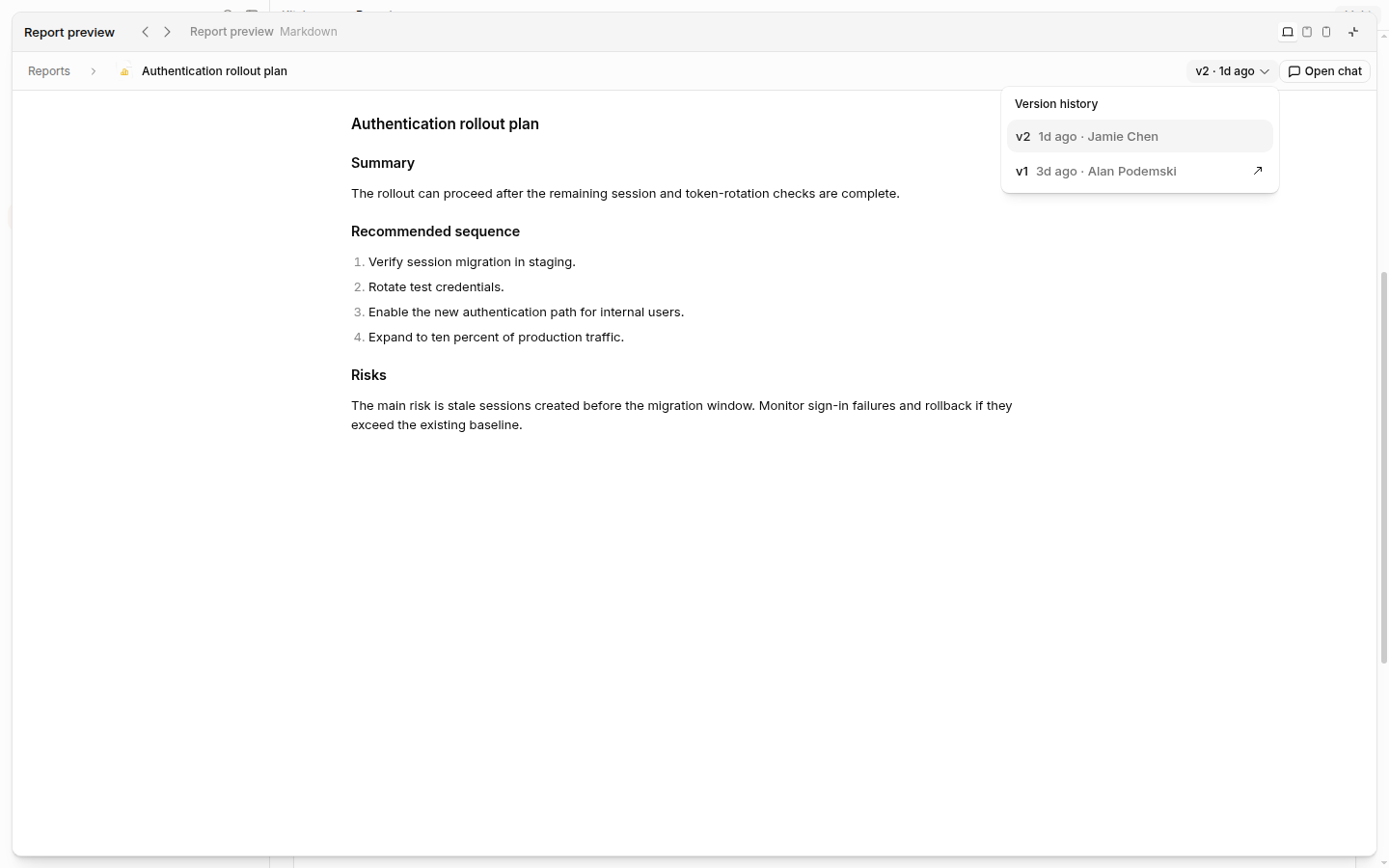
Each publication that changes the document or one of its assets creates a version. Open Version history to switch versions and see when and by whom each was published. Use the arrow beside a version to open its source session. From a report’s full-page view, Open chat opens the source session for the selected version.
Ask for changes
Open the report from its source session to leave feedback for Indent:
- Select text in the report and choose Comment.
- Write the change you want and choose Comment again. Repeat for any other passages.
- Choose Submit feedback to the agent to send the comments without another message, or send your next chat message to include them with it.
Comments remain drafts until they are submitted. They can be edited, deleted, or discarded first. Text comments are available in the report panel inside a session, not on the standalone Reports page.
A revision stays on the same report as a new version, so existing report links continue to work.
Download a report
Open Download on the version you are viewing:
- Download as PDF opens the browser’s print flow for the rendered report.
- Download as ZIP downloads the source Markdown and its report assets.
Referenced files and images are stored with each report version. When a report uses an external image, Indent downloads it and publishes it as a report asset; a report cannot keep an external image URL embedded directly.
Publishing limits
- Publishing requires a cloud sandbox. A session attached only to a local computer cannot publish a report.
- Subagents cannot publish reports themselves. The main session must publish the finished document.
- External images must become report assets before publishing. Referenced files are copied into the report so they remain available with it.
report.mdcan be up to 2 MiB. Each referenced asset can be up to 25 MiB, with at most 100 assets and 100 MiB total per version.